We're going to go through some of the navigation links on the crop input page. You're going to need to know how to move around and also know what things can be editing to be able to extract maximum enjoyment from your sessions with Profit per Acre when you're making crop budgets.
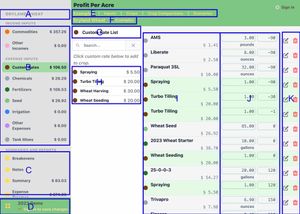
This is the page that we are talking about. The relevant items are highlighted, and then a description of what they do is listed down below.
A
The box marked A is the name of the crop we are currently working with.
B
B is the sidebar navigation that is dedicated to the pick lists. In the example, Custom Rates are selected. The price in this section is a total of all the items that are in the crop for the category. H shows the list of custom rates that are entered in. In I, J, and K you can see that the Custom Rates are highlighted. Selecting one of the other items in section B such as Fertilizers would switch all these items.
C
C is the section of the navigation that is for reports. The navigation sidebar does scroll so there are a few more down below that are not show in the screen shot.
D
D is a navigation link that takes to to an overview of all the items that are in Profit Per Acre. It goes to a navigation page where you can access everything.
E
E shows a section of links. These links don't change as you navigate from crop to crop. They allow quick movement from one section of the app to another.
F
The links listed in section F are a breadcrumb style of links. As you move from crop to crop or scenario to crop comparison, the last items you've navigated to will show up here. This is really handy for switching between a few similar items as you are comparing or adding data.
G
Since Custom Rates are the selected item in section B, the link in G will take you to the list where you can add a custom rate. When you're adding the expenses to a crop, it's not too uncommon that you'll find you're missing an item that you need. You can click this link and then quickly add the item. And yes, when you navigate this way, there will be a link in custom rates to switch back to the crop and get right back to what you were doing. This connection between B, G, and H works for all the inputs.
H
H is the actual pick list to add expenses to the crop. Tapping or clicking on one of these items adds them to the crop. The price listed is the price per acre using the default application rate and the current price.
I
I shows the list of expenses that have been added to the crop. The price is what it is costing per acre using the rate that is listed and the price that is set for the specified input.
J
The green rectangles in J are editable. Clicking or tapping on them allows the user to change the quantity. The numbers beside the quantity are for sort order. You can use them however you want, but the recommended way is to set planting as day 0 and then adjust the other inputs according to the days before or after planting.
K
K is for the edit and delete buttons. They do what you would expect edit and delete buttons to do. Note that there is no confirmation for a delete. It's simple enough to add the item back, that it seemed rather pointless to ask the user if they really wanted to delete the item. Of course they did, they clicked the button, now, didn't they?
And that's it. Knowing this stuff should make the user experience go smoother, and you can always refer back to this page for a refresher.
Profit Per Acre: Breakeven calculator for producers
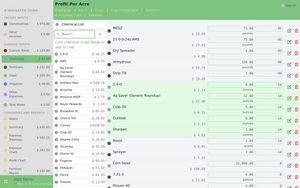
Profit per Acre is a web app that is used for calculating the projected profit on the acres that you farm. Instead of dealing with an ad hoc spreadsheet, or a hard-to-update piece of paper, why not go with the easy-to-use option of a web-based calculator?
Profit per Acre makes it easy to calculate the return on investment of different chemical programs or fertilizer products. As prices change, quickly see how your bottom line is affected and market your grain with confidence.